
All posts by Don Matteo

lives in Switzerland, is System Engineer MCP at A-Enterprise GmbH. Member of the UNBLOG Knowledge Network. Author and blogger topics, tutorials for Linux and Open Source.

Use the PrtScn button to open screen snipping

How to use the Windows 10 Print Screen button to open the screen snipping feature

Windows 10 version 1903 allows you to use the screen snipping feature to quickly snip and share a screenshot. You can use the Print Screen key to launch screen snipping. Until now, you had to be satisfied to use additional tools, such as the free Greenshot tool. Here is come now the Windows 10 Print Screen shortcut.

How the Print Screen Button works

Windows Print Screen Button Snipping Button Key

Using the new print screen button, you can capture a rectangle, snip a freeform area, or take a full screen capture, and copy it directly to the clipboard.

Enable Print Screen Key to Launch Screen Snipping in Windows 10

  1. Open the Settings
  2. Go to Ease of access -> Keyboard
  3. On the right, scroll down to the Print Screen shortcut section
  4. Activate with the slider – Use the PrtScn button to open screen snipping
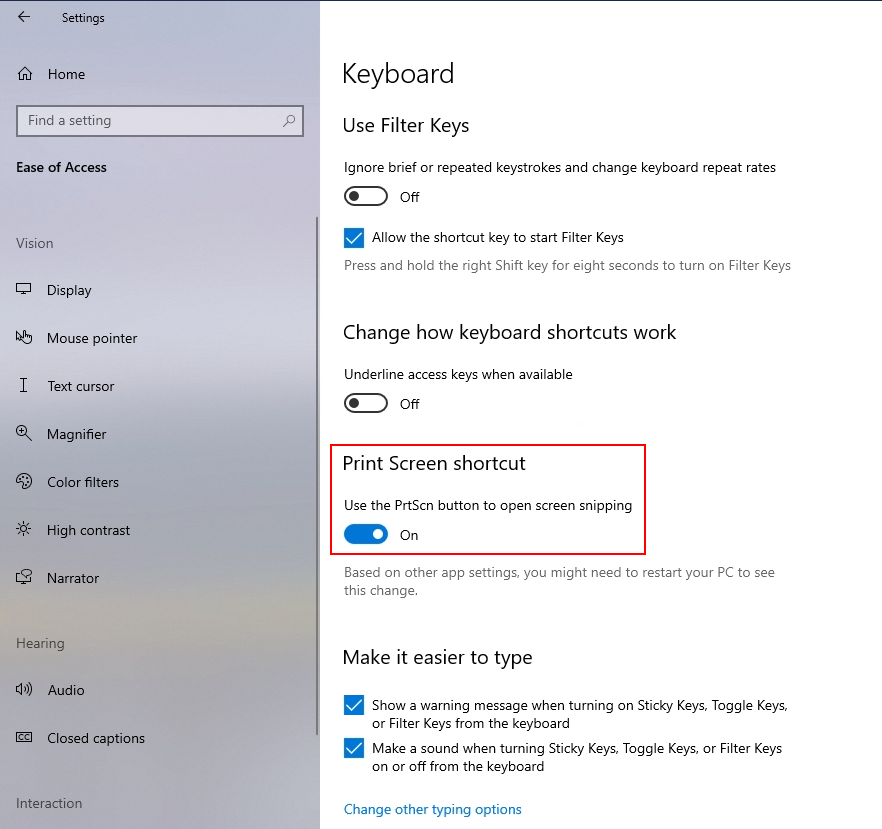
Enable Print Screen Key to Launch Screen Snipping in Windows 10, use the prtscn button to open screen snipping

After activating the print screen shortcut, it is possible to snip and share a screenshot via the print button (prt sc).

The Snipping Tool in Windows 11

Although the Snipping Tool exists in Windows 10, it’s not usually the screenshot tool you’ll want to use. In Windows 11, the Snipping Tool got a major upgrade and it’s now the best way to take custom screenshots.

To start the Snipping Tool in Windows 11, you can search for it or press the Windows Key + Shift + S. Your screen will go dim and a toolbar of screenshot options will appear at the top of the screen. This toolbar will let you take a rectangular, freeform, full-window, or a full-screen capture, as well as time your screenshot for the amount of seconds you’ll need to pull up the window you need to capture.
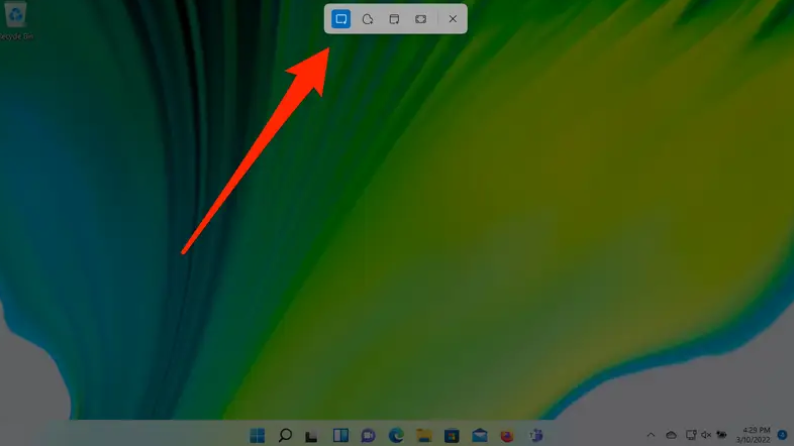
Snipping Tool in Windows 11

Windows Print Screen (PrtScn) button

Depending on your hardware, you may use the Windows Logo Key  + PrtScn button as a shortcut for print screen. If your device does not have the PrtScn button, you may use Fn + Windows logo key  + Space Bar to take a screenshot, which can then be printed. 

To locate your screenshots, open File Explorer from the taskbar. On the side navigation pane, select the Pictures folder, and select Screenshots.

extend sudo password timeout

How to extend sudo password timeout

System administrators also authenticate as normal users and use sudo when administrative tasks are performed. The first time sudo run they asks for the password, after which sudo is active for a limited time.

The default password timeout is 15 minutes. Therefore, if sudo is run again within 15 minutes (900 seconds), the prompt to re-enter the password will not occur.

Extend sudoers timestamp timeout

The timestamp_timeout defines the number of minutes that elapse before sudo should ask for the password again. Edit the /etc/sudoers file to change the timestamp_timeout.

I recommend using command visudo to edit the /etc/sudoers file. Add the value timestamp_timeout on the line after “Defaults”, in the /etc/sudoers file.

$ sudo su

A grep shows the searched lines.

$ grep Defaults /etc/sudoers

here a sudoers at Linux Mint.

extend sudo Password Timeout

The default setting is “Defaults env_reset”.

$ sudo visudo 

Extend sudo password timeout

Edit sudoers so that the Defaults line looks like this:

Defaults    env_reset,timestamp_timeout=-0

timestamp_timeout=-1 (minus one) causes the sudo password to never expire.

  For Debian/Ubuntu distributions, the -0 option did not work. A higher value e.g. 60 is accepted.

timestamp_timeout=0 (zero) causes the sudo password to expire every 0 (zero) seconds. This means that each time sudo is called, the password is asked.

 Conclusion

This post shows how to administrators also authenticate as normal users and use sudo when administrative tasks are performed. The first time sudo run they asks for the password, after which sudo is active for a limited time. This article shows how the time for the active session can be extended.