All posts by Don Matteo

lives in Switzerland, is System Engineer MCP at A-Enterprise GmbH. Member of the UNBLOG Knowledge Network. Author and blogger topics, tutorials for Linux and Open Source.

Find files by modified date with option mtime

Find is the command of choice when searching for files and their modified date and time using the option mtime. The Find Command Line Tool offers the option mtime and many more, also useful for applied in shell scripts. The find --help command gives help, and man find shows the man page.

Find Files using mtime and atime

find files with option mtime

In the file system, each file has three timestamps that are changed when certain operations are performed on the file:

  • [a] access (read the contents of the file) – atime
  • [b] change state (change the file or its attributes) – ctime
  • [modify] change the contents of the file – mtime

Files can be searched for with timestamps within a certain age range, or they can be compared to other timestamps.

Find Files with Option -mtime (modify)

The -mtime option returns a list of files if the file was last accessed N*24 hours ago. For example, to find a file from the last month (N=30 days), the -mtime +30 option can be used.

  • -mtime +30 means find file modified 30 days ago.
  • -mtime -30 means less than 30 days.
  • -mtime 30 without + or – means exactly 30 days.

For example, to find text files that were last modified 30 days ago, ran this command:

$ find /home/user -iname "*.txt" -mtime -30 -print

Show contents of files last modified 30 days ago ran the command:

$ find /home/user -iname "*.txt" -mtime -30 -exec cat {} \;

Count the total number of TXT files using wc (Word Count):

$ find /home/user -iname "*.txt" -mtime -30 | wc -l

Delete gzip archive files older than 30 days with ran this command:

$ find /home/user/*.gz -mtime +30 -exec rm {} \;

Find Files with Option -atime (access)

Search by access time, the following command returns the list of all .txt files that have been accessed in the last 30 days:

$ find /home/user -iname "*.txt" -atime -30 -type -f

List all json files accessed exactly 14 days ago:

$ find /home/user -iname "*.json" -atime 14 -type -f

Note. the switch -type f – search for files only exclude directories.

May find some string recursive in all files from the current directory.

$ find . -type f -print0 | xargs -0 grep "some string"

For example, to change all files recursively with chmod from the current directory, but not the directories.

$ find . -type f -print0 | xargs -0 chmod 0644

and vice versa, change all directories recursively with chmod from the current directory, but not the files.

$ find . -type d -print0 | xargs -0 chmod 0755

Find Files with Option -daystart

The -daystart option is used to measure time from the start of the current day instead of 24 hours ago. Find all C++ files (*.CPP) changed yesterday with the following command:

$ find /home/user -iname "*.CPP" -daystart -mtime 1

To list all LOG files in /var/log accessed yesterday use this command:

$ find /var/log -iname "*.log" -daystart -type f -mtime 1

List C++ files modified 2-7 days ago with this command:

$ find /home/user -iname "*.CPP" -daystart -mtime 2 -mtime -7

To find files in the /home/user directory tree that are newer than the files in /mnt/user, ran the command:

$ find home/user -newer /mnt/user

Conclusion

The find command-line tool can be used in the Linux shell to find files by their modification date. With its numerous options, the Command Line Tool offers many possibilities, which are also useful in script processing.
Name Resolution via VPN with Split Horizon DNS

Using Name Resolution in VPN connections, clients often cannot resolve the network resources to which the VPN clients are connected.

This is especially problematic with Active Directory, because the clients cannot reach domain controllers to log on. The login then takes place only via the local cache, as a result, group policies and login scripts fail to run.

Customize Interface Metric

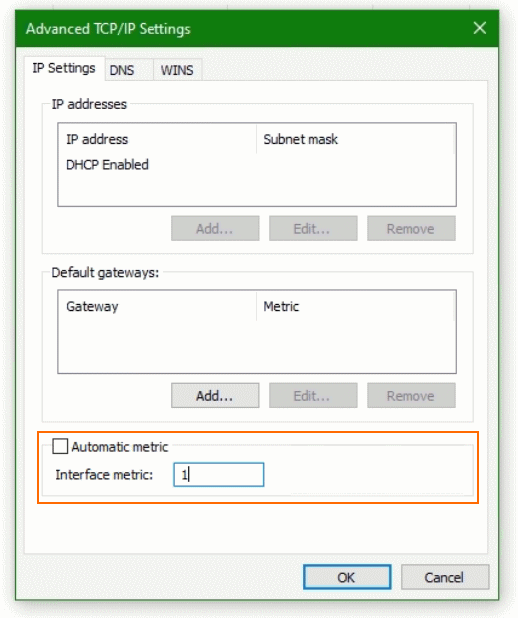
To control the Windows interface metric and favor the DNS server after dialing the VPN connection. The VPN interface can be assigned a higher priority and thus lower metric via the TCP/IP settings of the network adapter using the Windows+R keys and entering ncpa.cpl

In the properties of the corresponding network adapter you open with a double-click. Internetprotocol, version 4 (TCP/IPv4), then via the button Advanced, you will find the field for the value of the interface metric.

Split Horizon DNS Interface metric

Here “Automatic metric” should not be activated for the VPN interface, a low value can be entered. After the next initialization, name resolution should take place over the VPN network.

Disable multicast name resolution

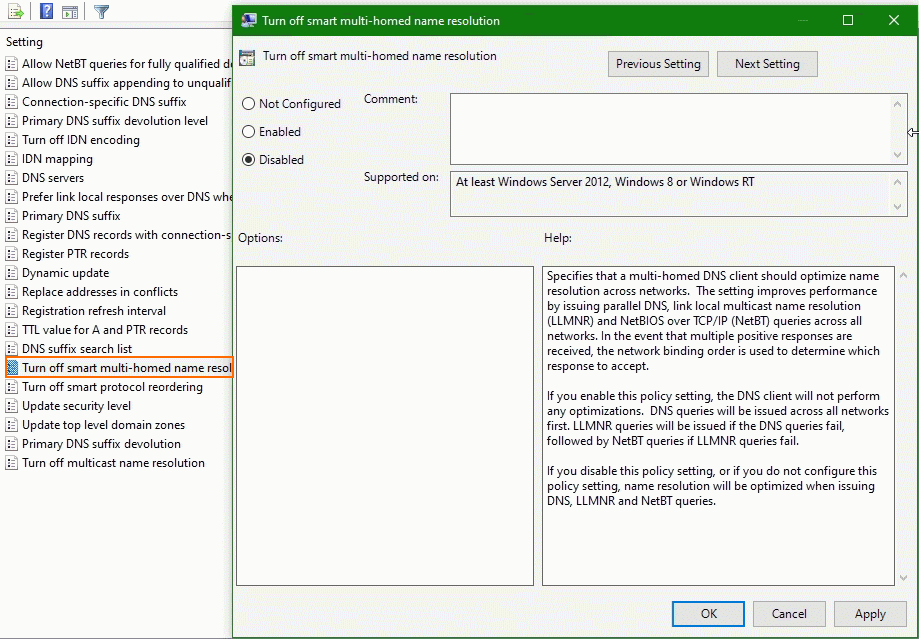
Windows 10 and 11 introduced Smart Multi-Homed Name Resolution (SMHNR), which sends DNS requests to multiple DNS servers simultaneously to speed up name resolution.

This is an undesirable side effect, the requests for internal name resolution are sent to external DNS servers (“DNS leakage”). Their operators can thus obtain a detailed overview of the organisation’s IT resources.

Name resolution via VPN

The setting is Turn off smart multi-homed name resolution under Computer Configuration => Administrative Templates => Network > DNS Client.

Turn off smart multi-homed name resolution

Customize interface metrics in PowerShell

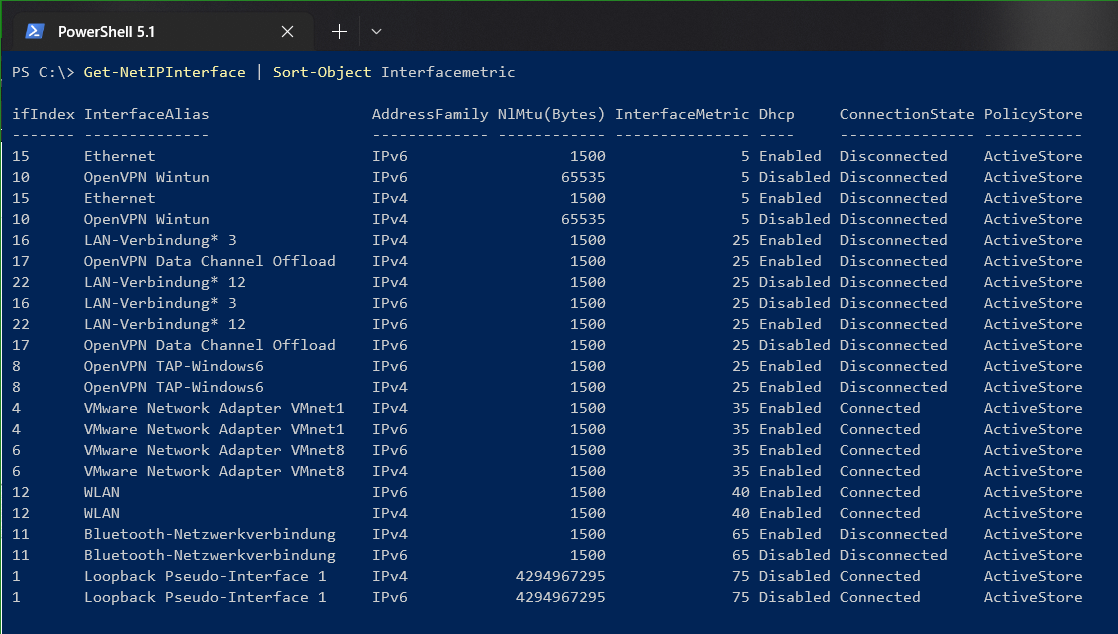
The interface metrics of the different network connections can be displayed sorted in PowerShell with the following command.

PS C:\> Get-NetIPInterface | Sort-Object Interfacemetric

PowerShell now shows all interface metrics.

Get-NetIPInterface Sort-Object Interfacemetric

Alternatively, the metrics can be output with the netsh.exe utility, although not as detailed as in PowerShell.

C:\> netsh int ip show interfaces

Idx     Met         MTU          State                Name
---  ----------  ----------  ------------  ---------------------------
  1          75  4294967295  connected     Loopback Pseudo-Interface 1
 10           5       65535  disconnected  OpenVPN Wintun
 12          40        1500  connected     WLAN
 15           5        1500  disconnected  Ethernet
  8          25        1500  disconnected  OpenVPN TAP-Windows6
 11          65        1500  disconnected  Bluetooth-Netzwerkverbindung
 17          25        1500  disconnected  OpenVPN Data Channel Offload
 16          25        1500  disconnected  LAN-Verbindung* 3
 22          25        1500  disconnected  LAN-Verbindung* 12
  4          35        1500  connected     VMware Network Adapter VMnet1
  6          35        1500  connected     VMware Network Adapter VMnet8

The interface metric is changed in PowerShell as follows.

PS C:\> Set-NetIPInterface -InterfaceIndex <ifIndex Wert> -InterfaceMetric <Metrik>

The network adapter is identified by using the –InterfaceIndex parameter, which is obtained when queried with the Get-NetIPInterface cmdlet in the ifIndex column.

Conclusion

In this tutorial we show you, the name resolution for VPN clients is enabled via the tunneled VPN connections.

Network resources are resolved and the domain controllers can be reached for authentication. Login can be done through Local Security Authority Subsystem Service (LSASS), running Group Policy and login scripts.

What is Split-Horizon DNS

When split-horizon DNS is deployed by a network. Then certain domains are only resolvable by querying the network-designated DNS server rather than a public DNS server.

DNS clients which use DNS servers not provided by the network need to route those DNS domain queries to the network-designated DNS server.

This document informs DNS clients of split-horizon DNS, their DNS domains, and is compatible with encrypted DNS.